
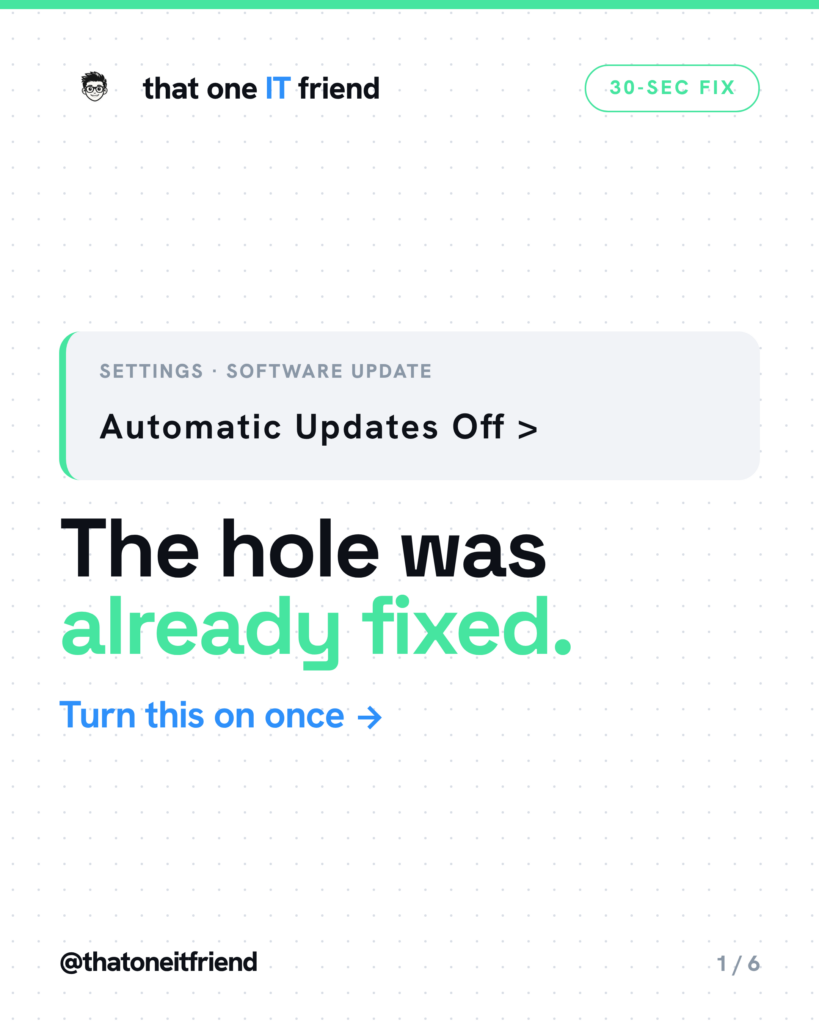


Short answer: turn on automatic updates on every device you own, including the apps, and then stop thinking about it. It is the highest-value thirty seconds in personal security, and it is the one piece of advice that costs nothing and asks nothing of you afterward.
Why the timing is the whole story
CISA’s consumer guidance describes what an update is doing: “Technology providers issue software updates to ‘patch’ security weak spots as quickly as they can.” The uncomfortable part is what happens the moment a patch ships, because the patch is also an announcement. NIST’s patch management guide says it directly: “Once a new vulnerability becomes publicly known, risk usually increases because attackers are more likely to develop exploits that target the vulnerable software.”
So the dangerous window isn’t before the fix exists. It’s between the fix existing and you installing it. Automatic updates close that window while you’re asleep. CISA’s three steps, in their order, are: watch for notifications, install updates as soon as possible, turn on automatic updates.
iPhone and iPad
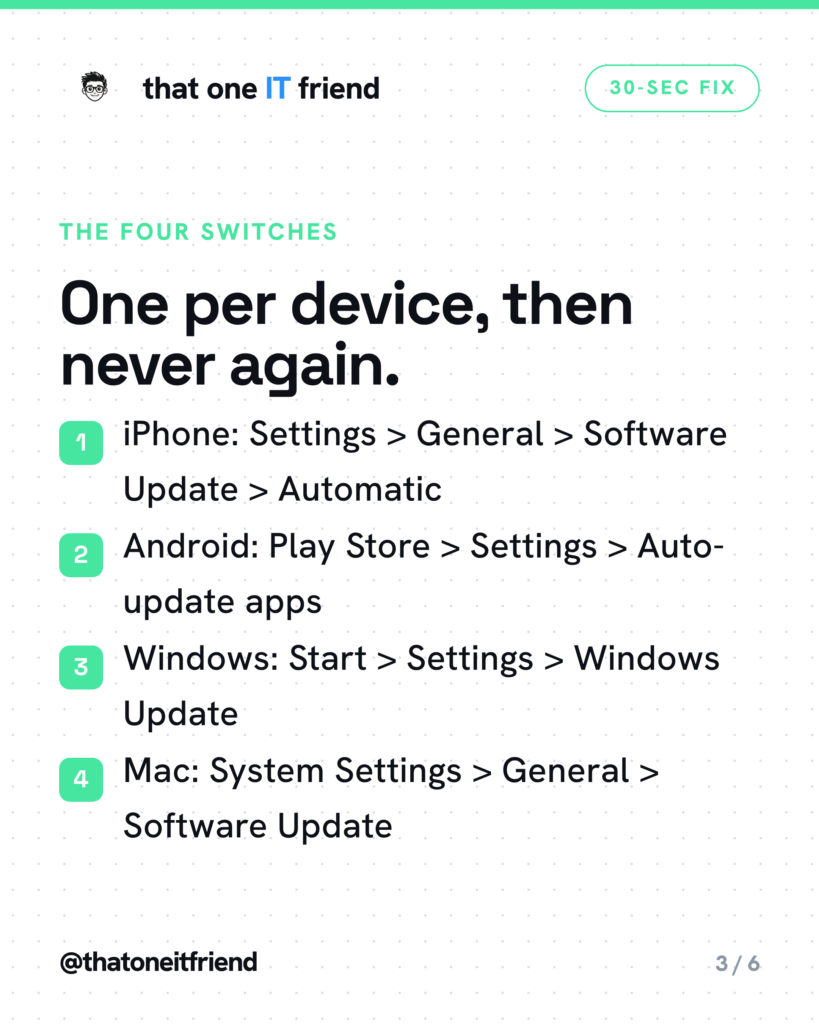
Settings, General, Software Update, Automatic Updates. Turn on both Automatically Download and Automatically Install. In the same screen, under System Files, turn on Automatically Install as well.
One thing that has moved and trips people up: the old “Security Responses & System Files” toggle is gone under that name. Apple split it. The system-files half now sits under Software Update, and the fast security patches became Background Security Improvements under Settings, Privacy & Security, on iOS 26.1 and later. If you go looking for the old name you won’t find it.
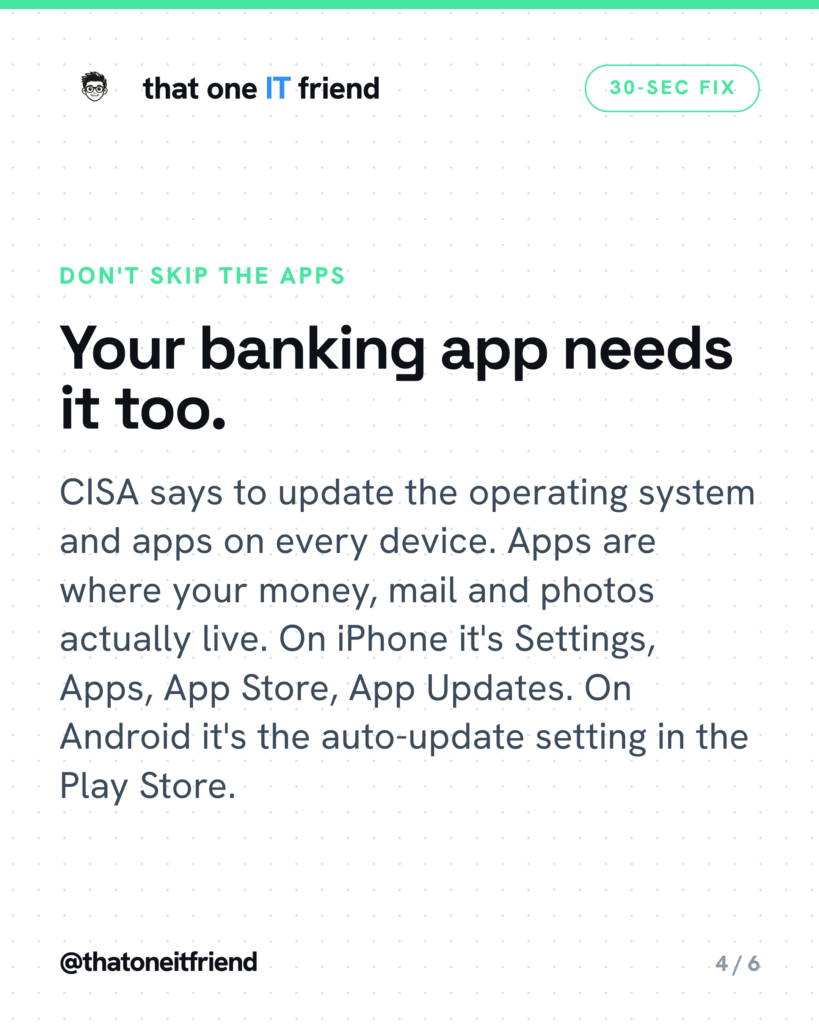
For apps: Settings, Apps, App Store, and turn on App Updates.
Android
Apps first, because that’s the switch that exists: open the Play Store, tap your profile picture, then Settings, Network preferences, Auto-update apps. Choose Update over Wi-Fi only if cellular data is tight, or Update all apps over Wi-Fi or mobile data if it isn’t.
System updates work differently, and it’s worth being straight about it: there is no consumer “turn on automatic system updates” switch documented by Google. Pixel phones install downloaded updates in the background and activate them at the next restart, and Google says many other Android phones restart to install automatically too. So on Android the real habit is to check and restart: Settings, System, Software updates. And check Settings, About phone, where Android security update tells you the date of your last security patch. If that date is a year old, your phone may have stopped getting them.
Windows and Mac
- Windows: Start, Settings, Windows Update. Turn on “Get the latest updates as soon as they’re available.” Microsoft notes Windows 11 already downloads and installs updates automatically by default, so for most people this is a check rather than a change. Also open the Microsoft Store, click your profile picture, Store Settings, and make sure App updates is on.
- Mac: Apple menu, System Settings, General, Software Update. Turn on “Automatically keep my Mac up to date,” then open the info button next to it and turn on the individual options underneath, including app updates from the App Store.
The honest caveat
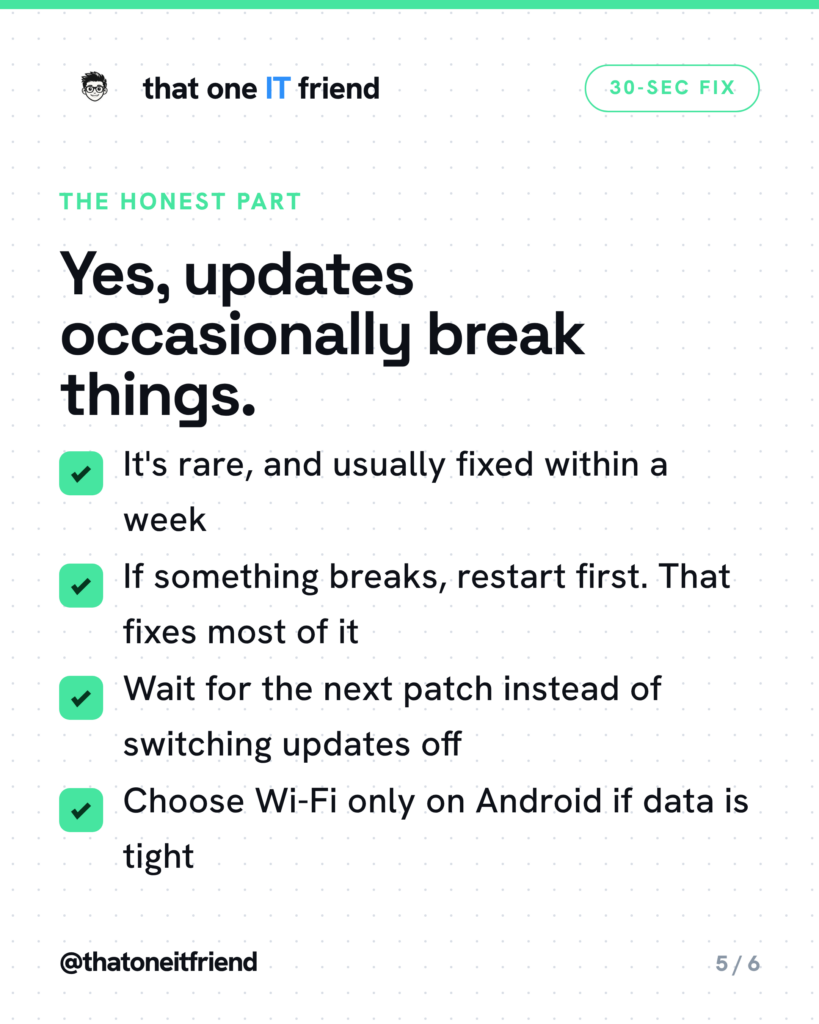
Updates do occasionally break something. An app stops working, a printer sulks, the battery acts strange for a day. That’s real. It’s also rare, and it’s usually fixed by a follow-up patch within a week or so.
The trade is lopsided. A misbehaving printer is an annoyance; an unpatched phone is an open door. So if an update does break something, don’t turn automatic updates off. Restart the device first, which fixes a surprising share of it, and if it’s still wrong, wait for the next small update rather than rolling back. The only people who should genuinely delay are those whose livelihood depends on one specific piece of software, and they already know who they are.
The one rule to remember
Attackers hunt flaws that are already fixed. Auto-updates close them for you. Four switches, one per device, thirty seconds each, and then it never needs your attention again.
Frequently asked questions
Will this use up my data?
On iPhone, no — automatic downloads are designed to happen when you’re on Wi-Fi, charging and locked. On Android you control it directly: in the Play Store, under Settings, Network preferences, Auto-update apps, choose “Update over Wi-Fi only” and it will never touch your cellular data. Windows and Mac assume you’re on home internet.
Should I update right away or wait a few days?
Right away. CISA’s own steps are watch for notifications, install as soon as possible, turn on automatic updates — in that order. NIST explains the reason: once a vulnerability is publicly known, attackers start building exploits for it. Waiting puts you inside that window on purpose.
My phone is old. Will updating slow it down?
Security updates are small and don’t meaningfully change performance. The big yearly version jumps are the ones that can feel slower on aging hardware. The more useful question is whether your device still gets updates at all — check Settings, About phone, Android security update, or Settings, General, Software Update on iPhone. If it stopped receiving them, CISA’s guidance is to upgrade to a supported OS.
Do I have to do the apps too, or just the phone?
Both. CISA says to update the operating system and apps on all your devices, and apps are where your banking, email and photos live. It’s one switch per device: App Updates on iPhone, Auto-update apps in the Play Store, App updates in Microsoft Store settings. Set it once.
Every week I break down one scam to dodge, one genuinely useful AI trick, and one 30-second tech fix, in plain English. Follow @thatoneitfriend on Instagram, TikTok, and Facebook, or get the weekly rundown by email at thatoneitfriend.com.