
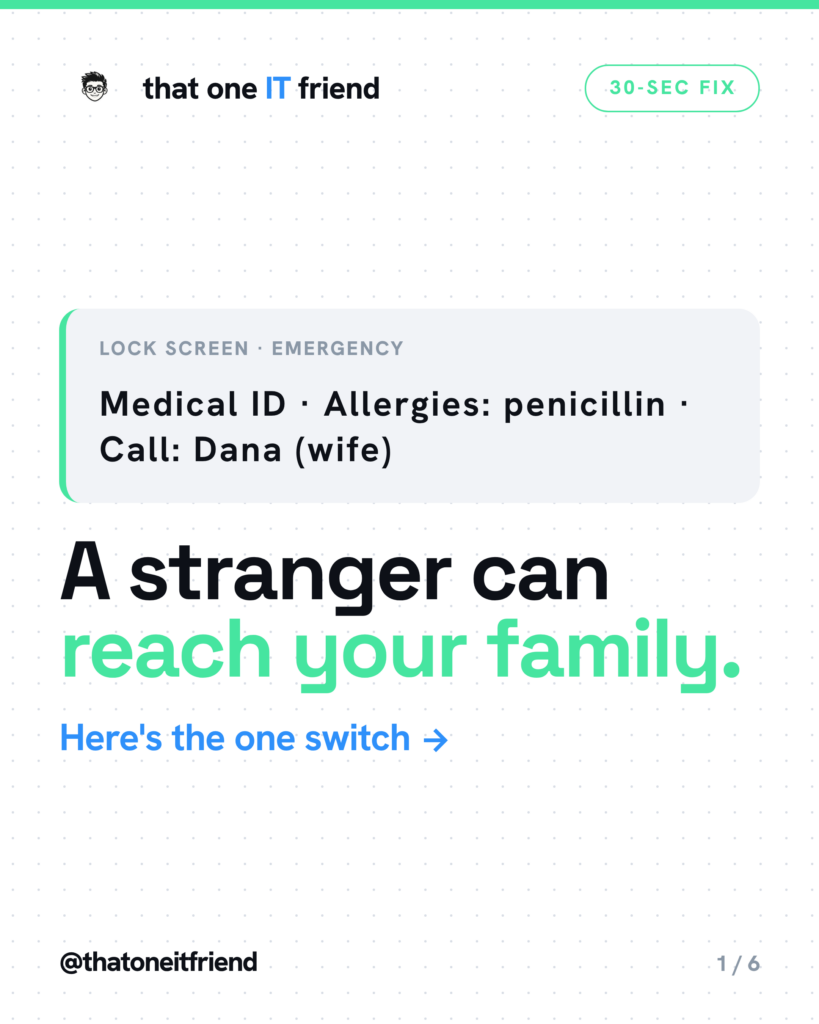
Short answer: fill in Medical ID on iPhone or Emergency information on Android, then turn on the switch that shows it on the lock screen — that switch is off by default and it’s the only part that matters. A paramedic will pick up your phone. They will not have your passcode. Thirty seconds now decides whether they learn you’re allergic to penicillin.
What actually happens at the scene
Someone finds you unable to answer questions. They pick up your phone, which is locked, and they need two things fast: what’s medically true about you, and who to call. Both phones have had a place for exactly this for years. Almost nobody has turned it on, and a good number of the people who filled it in never flipped the switch that makes it visible.
iPhone, step by step
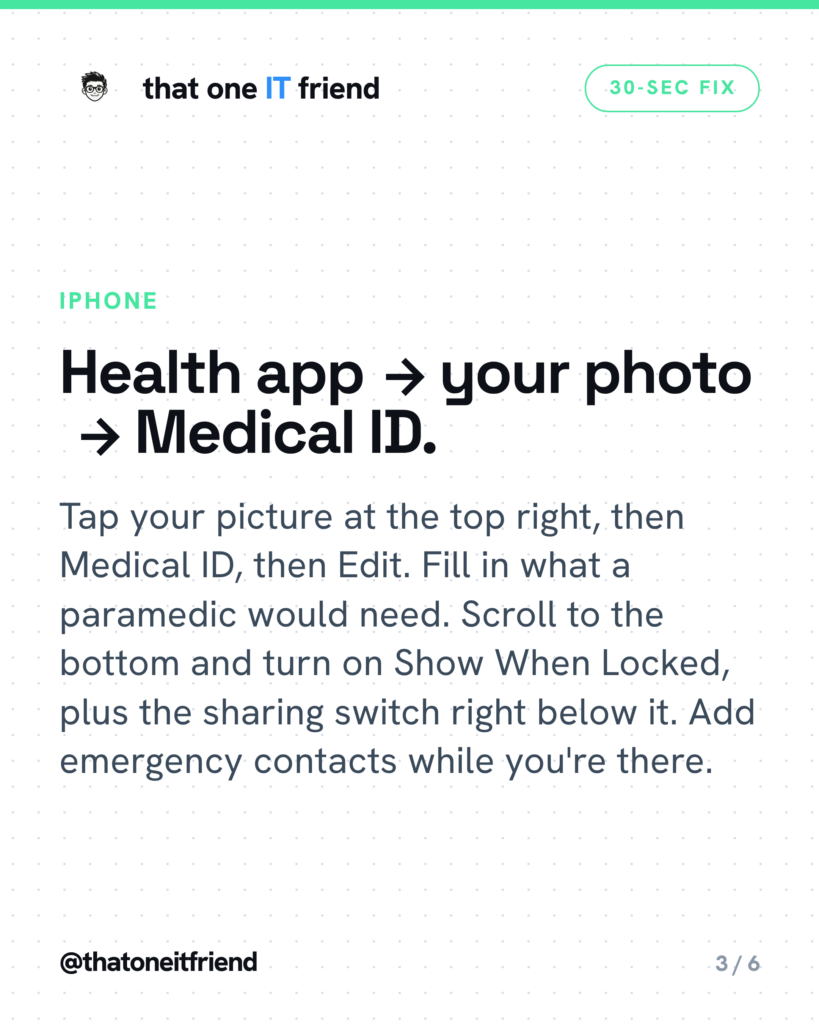
Open the Health app, tap your picture in the top right, then Medical ID, then Edit. (On older versions of iOS you’ll tap the Summary tab first.) Fill in medical conditions, allergies and reactions, medications, blood type, and your date of birth. Below Emergency Contacts, tap Add Emergency Contact and pick people from your contacts — each one gets a relationship label, which is what tells a responder who they’re calling.
Then scroll to the bottom, and this is the part that counts: turn on Show When Locked, and turn on the sharing switch directly beneath it. Apple’s own documentation uses two slightly different names for that second switch depending on which page you read, so don’t hunt for exact wording — it’s the one right under Show When Locked, and you want it on.
What a responder does: wake the phone, swipe up (or press the Home button), tap Emergency at the bottom of the passcode screen, then tap Medical ID. No passcode at any point.
While you’re in there, check Settings, Emergency SOS. After an emergency call ends, your iPhone texts your emergency contacts with your location automatically unless you cancel, and keeps updating it if you move.
Android, step by step
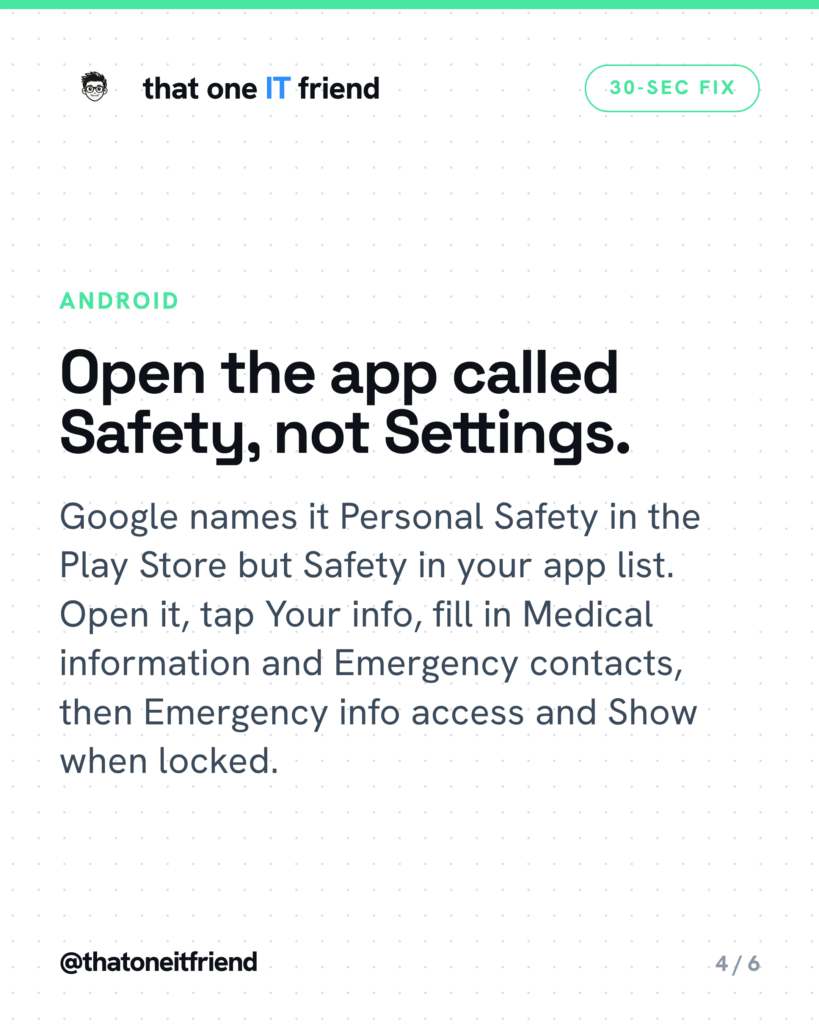
The first hurdle is finding the app, and Google says why in its own help page: it “will show as the Personal Safety app in Play Store and in settings. But in your list of apps, it only shows as the Safety app.” So search your app drawer for Safety.
- Open the Safety app and sign in to your Google account.
- Tap Your info, then Medical information, and fill in blood type, allergies and medications.
- Back in Your info, tap Emergency contacts and add people.
- Then the step people miss: tap Emergency info access and turn on Show when locked.
On a Samsung Galaxy it lives somewhere else entirely: Settings, then Safety and emergency, then Emergency contacts and Medical info, and there’s a Show on Lock screen switch to turn on. Samsung writes it “Safety and emergency”; Google writes “Safety & emergency.” Same idea, different menu.
What a responder does on Android: swipe up on the lock screen, tap Emergency, then View emergency info.
What to put in, and what to leave out
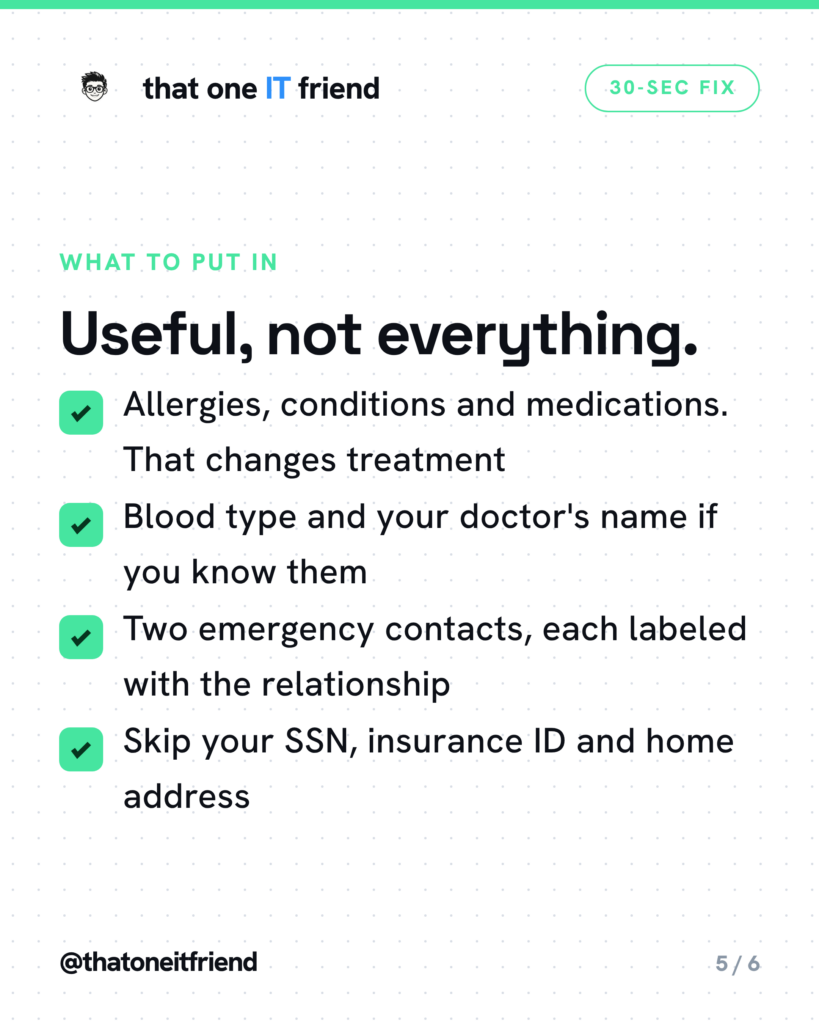
Put in what changes treatment: allergies and reactions, conditions like diabetes or epilepsy, current medications, blood type if you know it, and your doctor’s name. Add two emergency contacts with relationship labels, because “Dana (wife)” tells a responder something “Dana” doesn’t.
Leave out anything that isn’t medical. Google’s own help page carries the warning in bold: “Anyone who picks up your phone can find your lock screen message and emergency information even if your phone is locked.” That’s the whole point of the feature, and it’s also the reason your Social Security number, insurance ID and home address don’t belong there.
The one rule to remember
If it’s locked to a stranger, your medical info shouldn’t be. Fill it in, turn on the lock screen switch, and then do the only test that proves it worked: lock your phone, hand it to someone in the room, and ask them to find your allergies. If they can’t in fifteen seconds, neither can a paramedic.
Frequently asked questions
Can anyone see this?
Yes, and that’s deliberate. Google states plainly that anyone who picks up your phone can view your emergency information even while it’s locked, and Apple’s Medical ID works the same way. That’s the trade: it has to be readable without your passcode to be worth anything. So put in what helps a paramedic and nothing else — no Social Security number, no insurance ID, no home address.
Does it work if my phone is locked?
That’s the entire feature, and it needs no passcode, Face ID or fingerprint. But only if you turned the switch on. iPhone: Show When Locked. Android: Emergency info access, then Show when locked. Samsung: Show on Lock screen. Off by default in most cases, which is why filling in the form isn’t enough on its own.
Will my emergency contacts be notified if I call 911?
On iPhone, yes — Apple’s guide says that after an emergency call ends, your iPhone messages your emergency contacts with your location unless you cancel, and keeps sending updates if you move. On Android this is part of Emergency SOS, which you set up separately under Settings, Safety and emergency. Both need cell service.
Does the 911 dispatcher get my medical info automatically?
On iPhone, in the US and Canada only, and only if that second sharing switch is on. Apple adds a condition most people never find: it won’t work if Location Services, System Services, Emergency Calls and SOS is turned off. On Android what’s sent automatically is your location, not your medical details — someone has to pick up the phone and tap through to read those.
Every week I break down one scam to dodge, one genuinely useful AI trick, and one 30-second tech fix, in plain English. Follow @thatoneitfriend on Instagram, TikTok, and Facebook, or get the weekly rundown by email at thatoneitfriend.com.